GENIUSPRO50 Support
GENIUSPRO50
SUPPORT.
USER GUIDE
DATASHEET
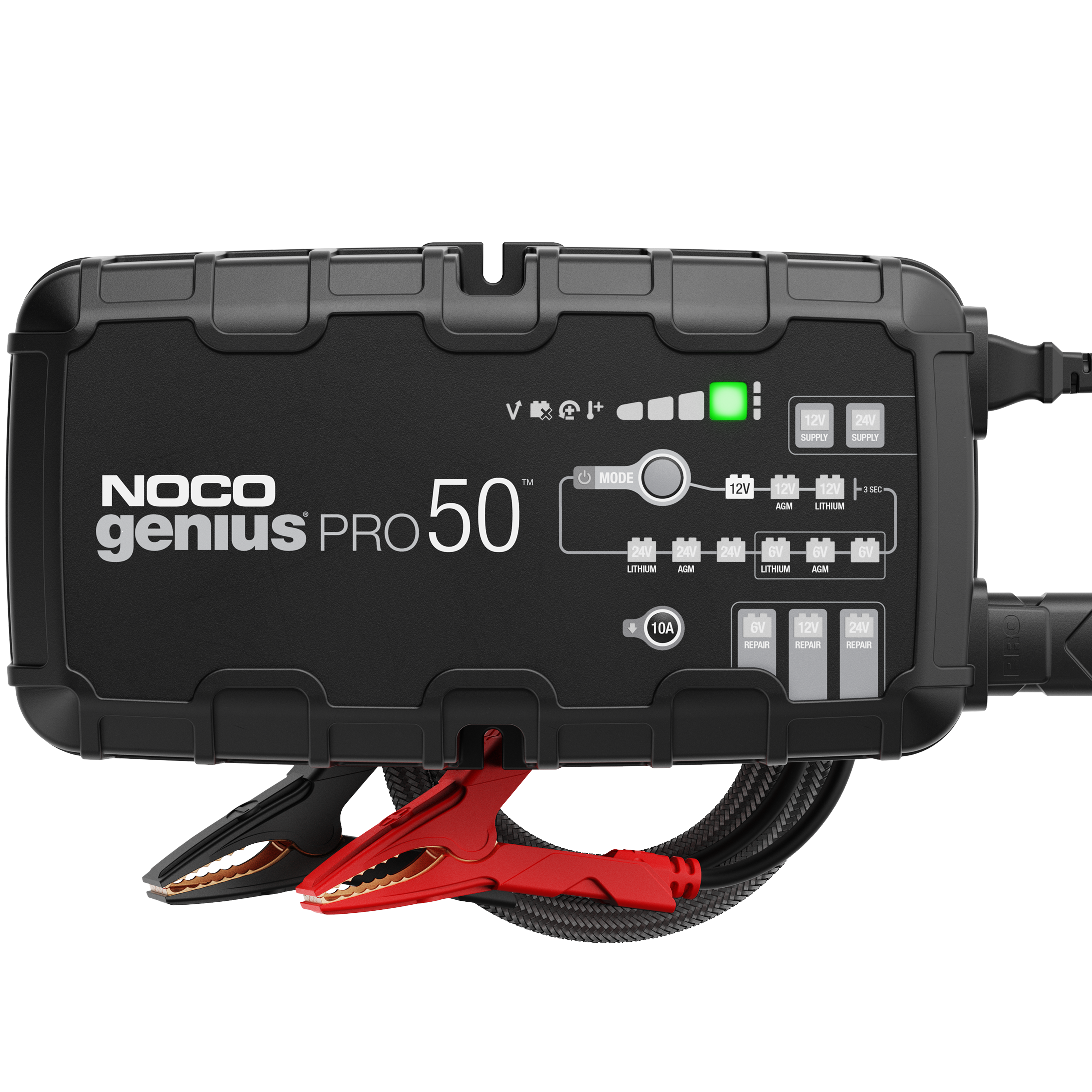
Advanced Diagnostics.
GENIUSPRO50
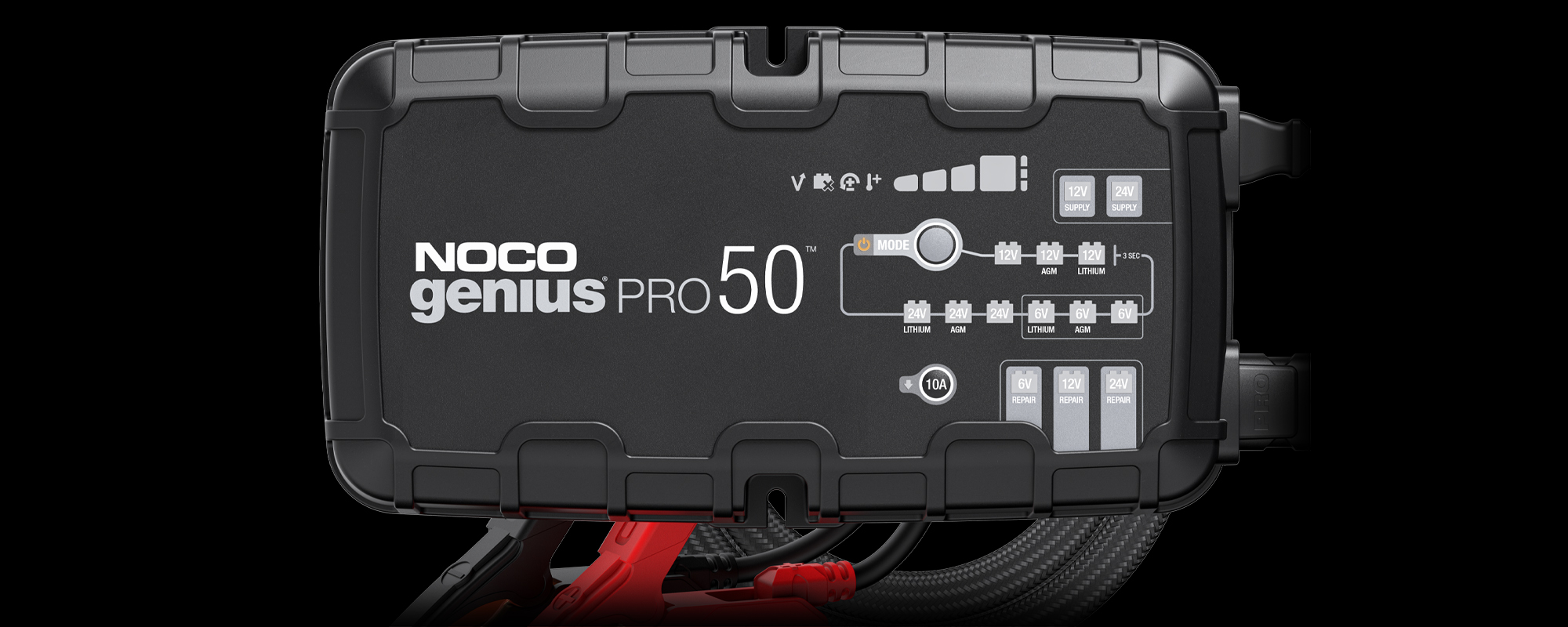
Standby
The charger is in standby mode or the battery voltage is too low for the charger to detect.
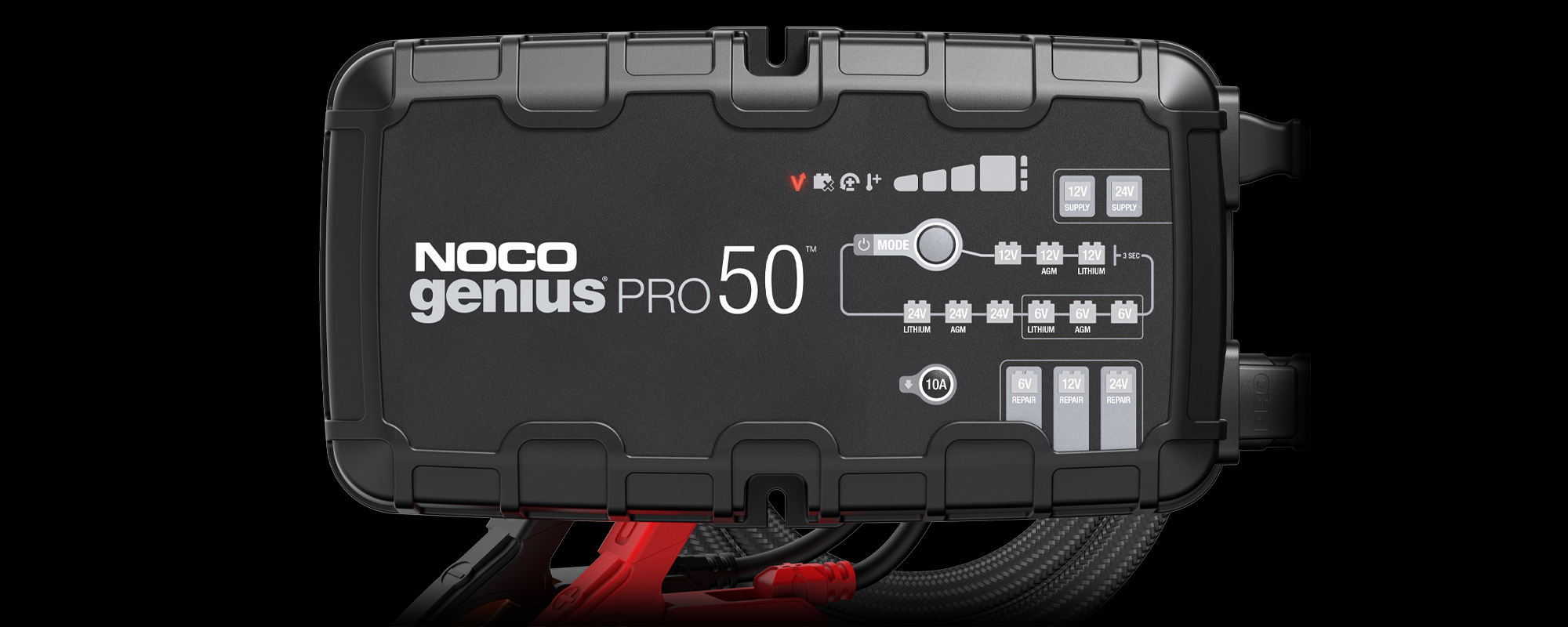
High Voltage
The battery voltage is too high for the selected charge mode. Check the battery and charge mode.
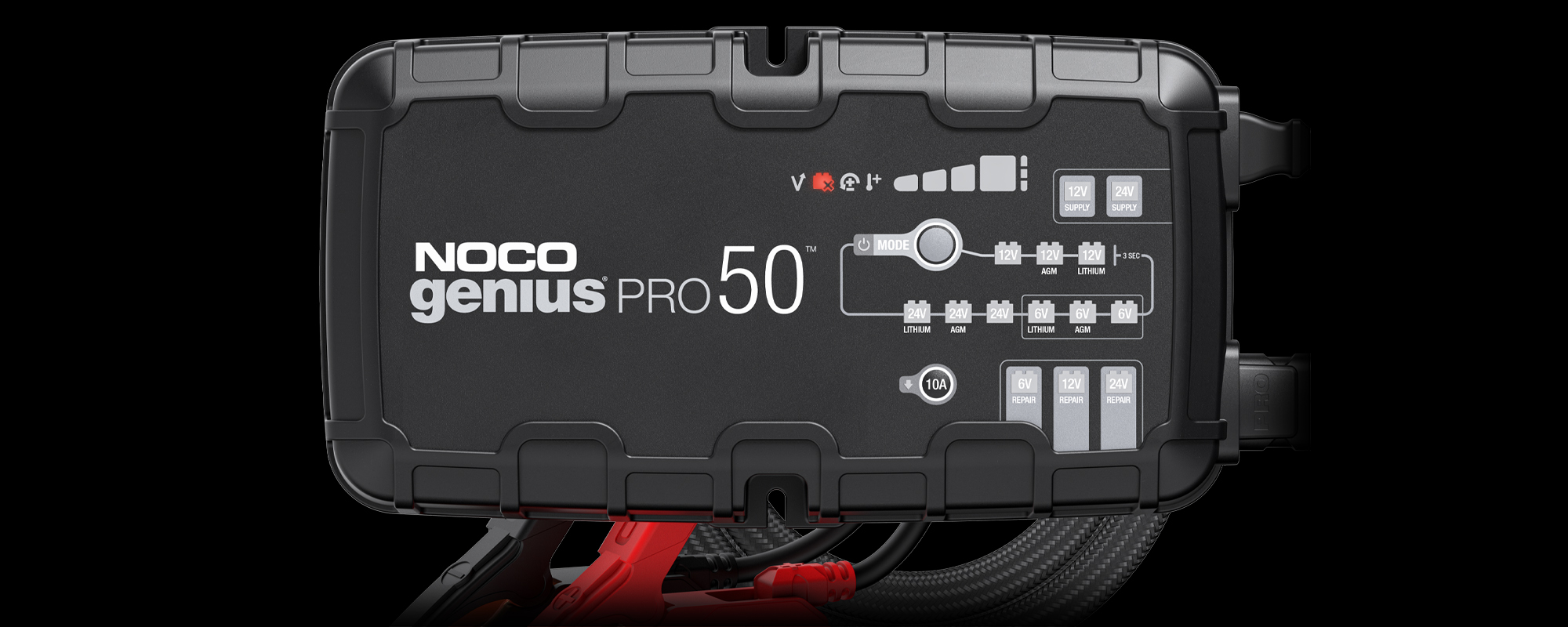
Bad Battery
There is a possible battery short or the battery will not hold a charge. Have the battery checked by a professional.
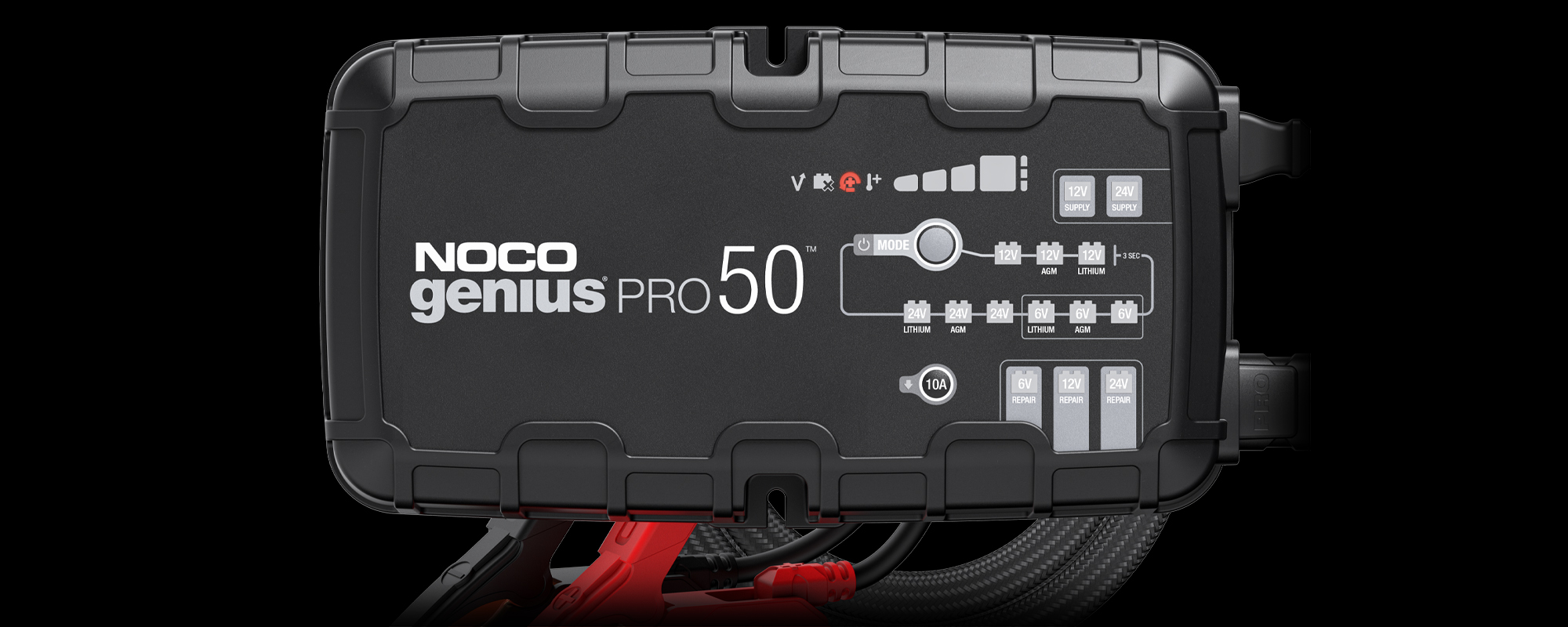
Polarity
Charger is connected to the battery in reverse. Reverse the connections.
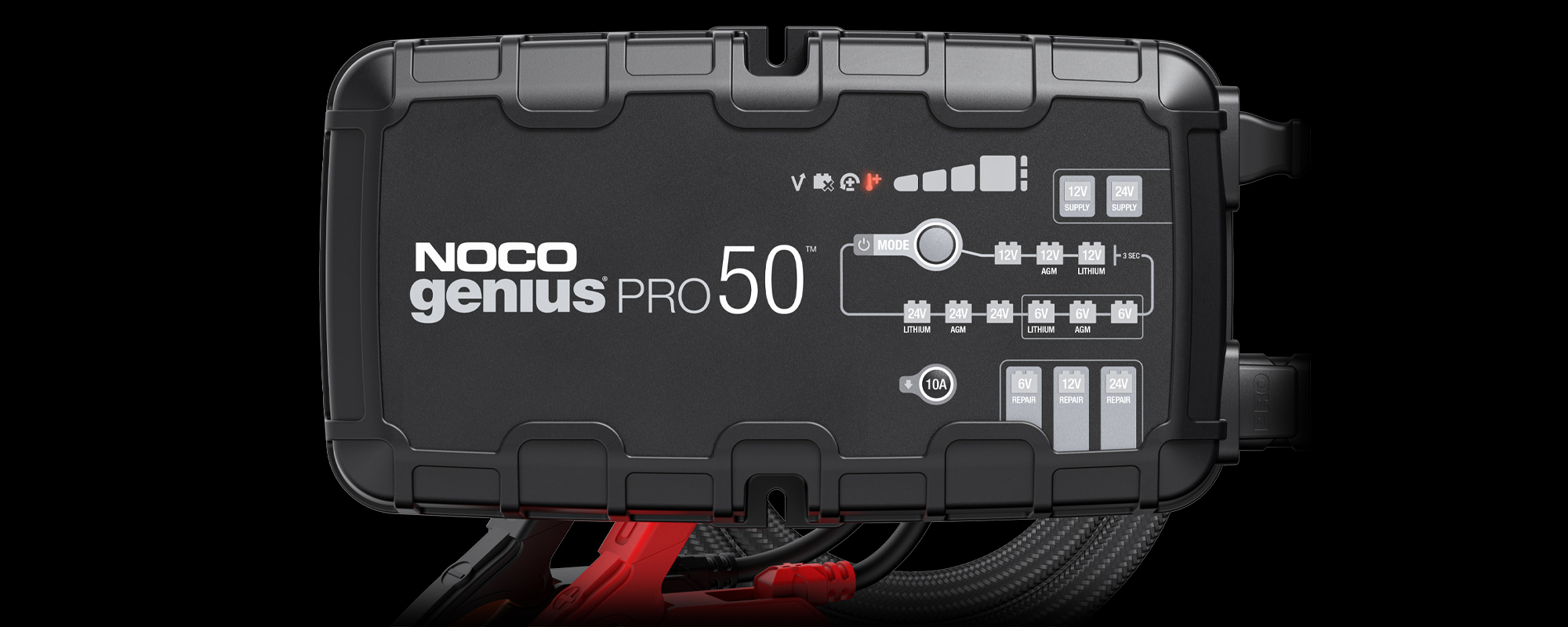
High Temp
Charger internal temperature too high / Charger will resume function once the Charger internal temperature drops.
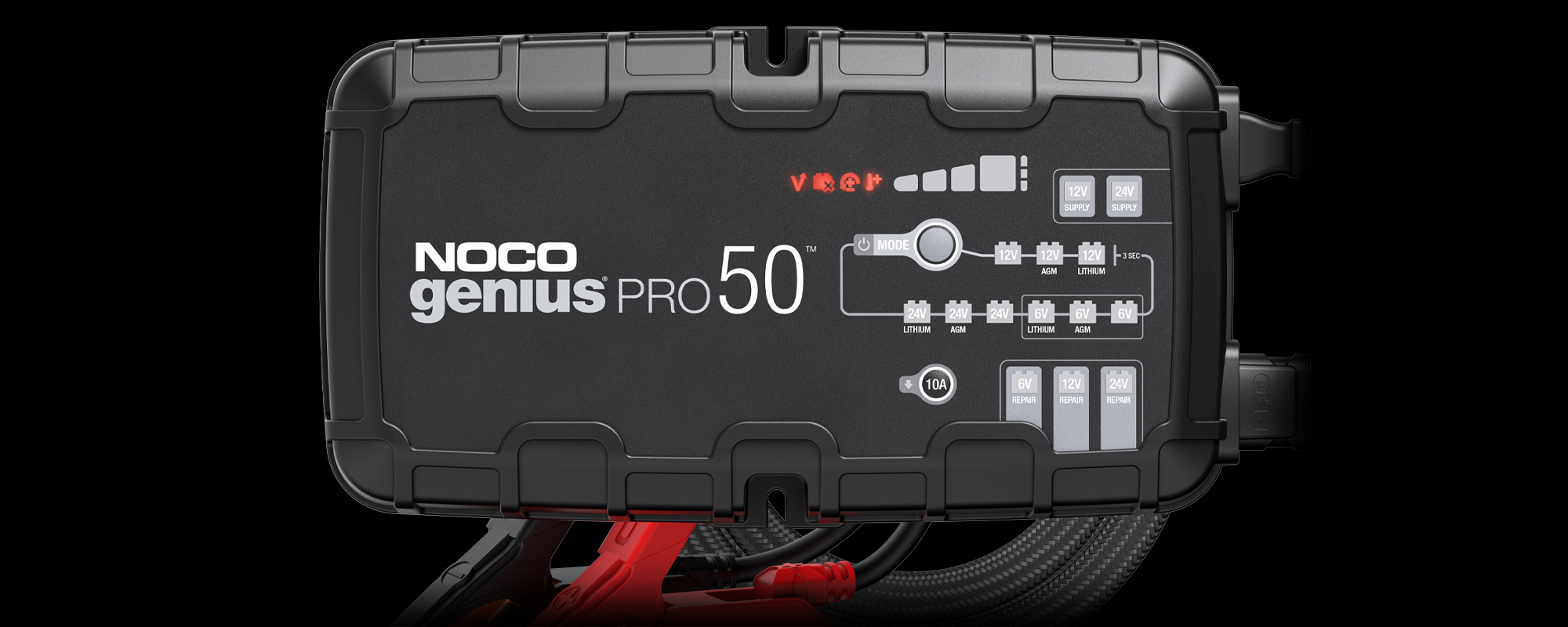
Low Temp
All Error LED’s will flash. Ambient temperature is too cold. Charger will resume once the temperature is back within operating limits.
Advanced Charging.
GENIUSPRO50
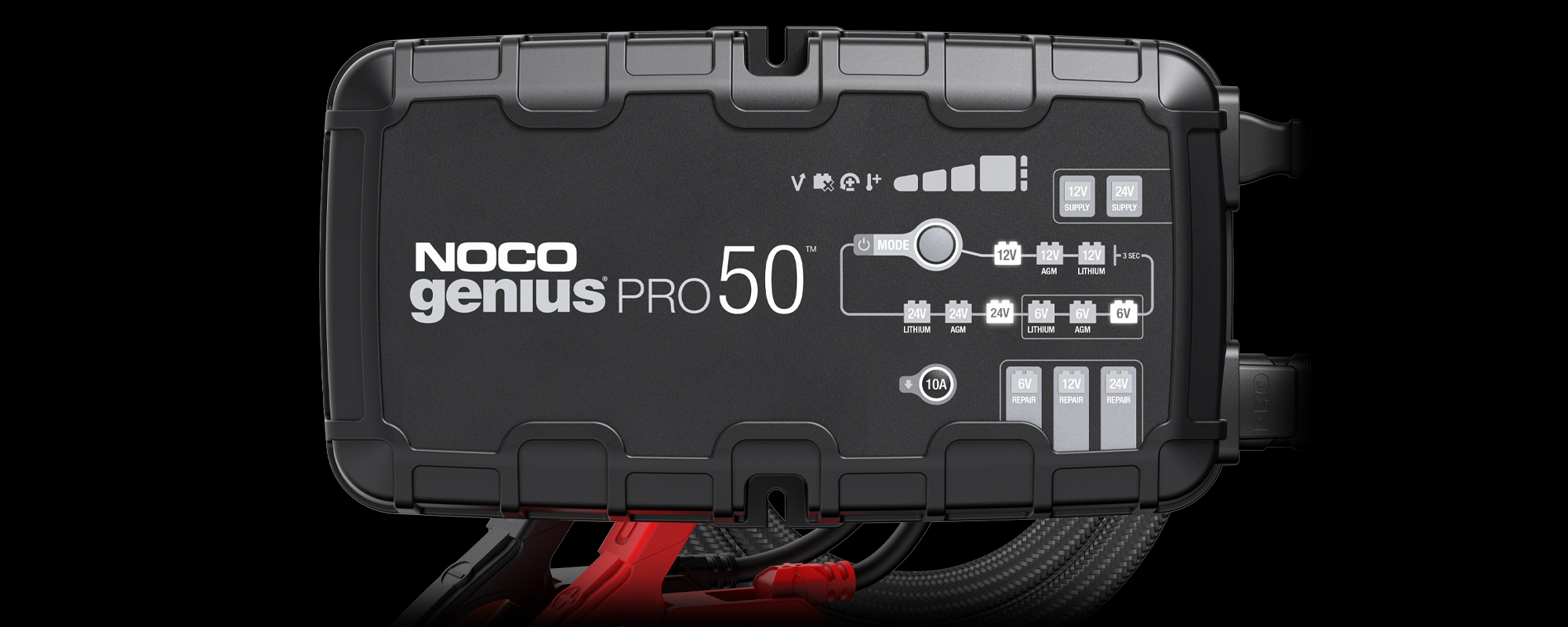
Lead-Acid
Used for 6V, 12V, or 24V wet cell, gel, enhanced flooded, maintenance- free, & calcium batteries.
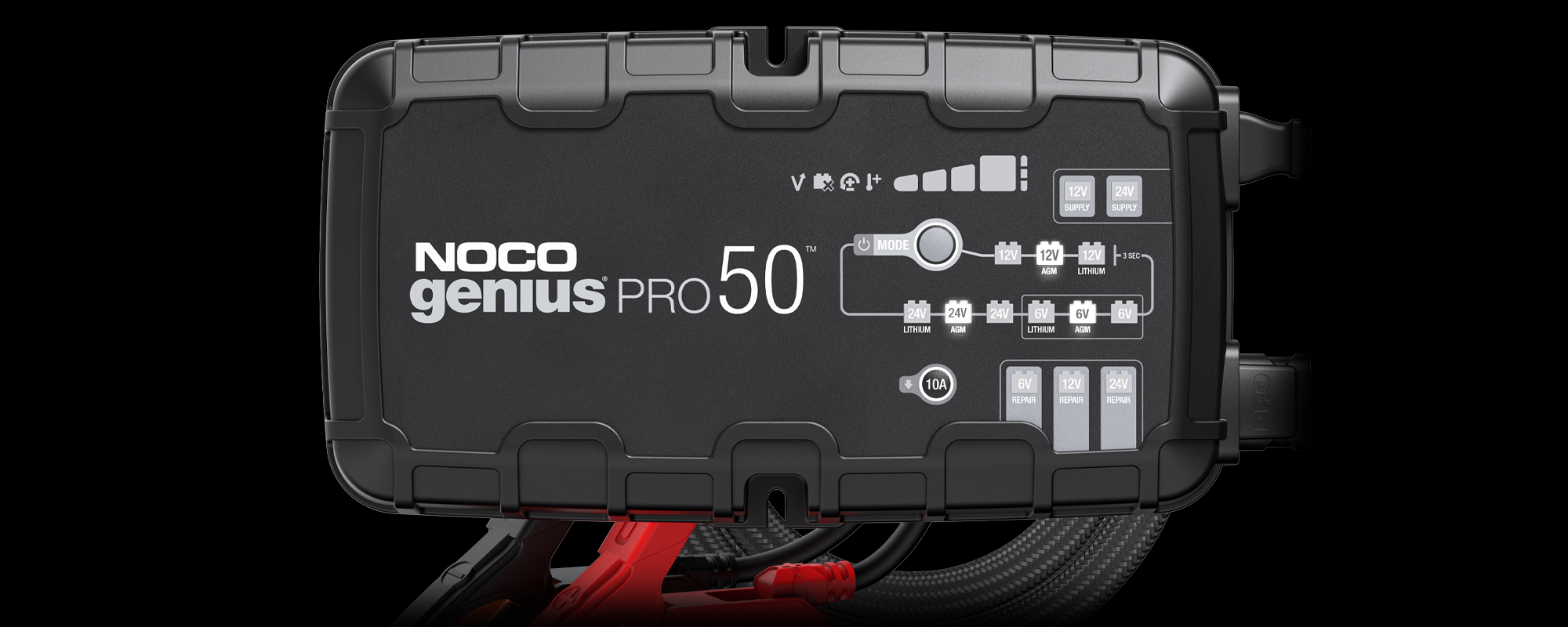
AGM Mode
Used for 6V, 12V, or 24V AGM batteries.
Lithium
Used for 6V, 12V, or 24V lithium iron phosphate (LiFePO4) batteries with Battery Management Systems (BMS).
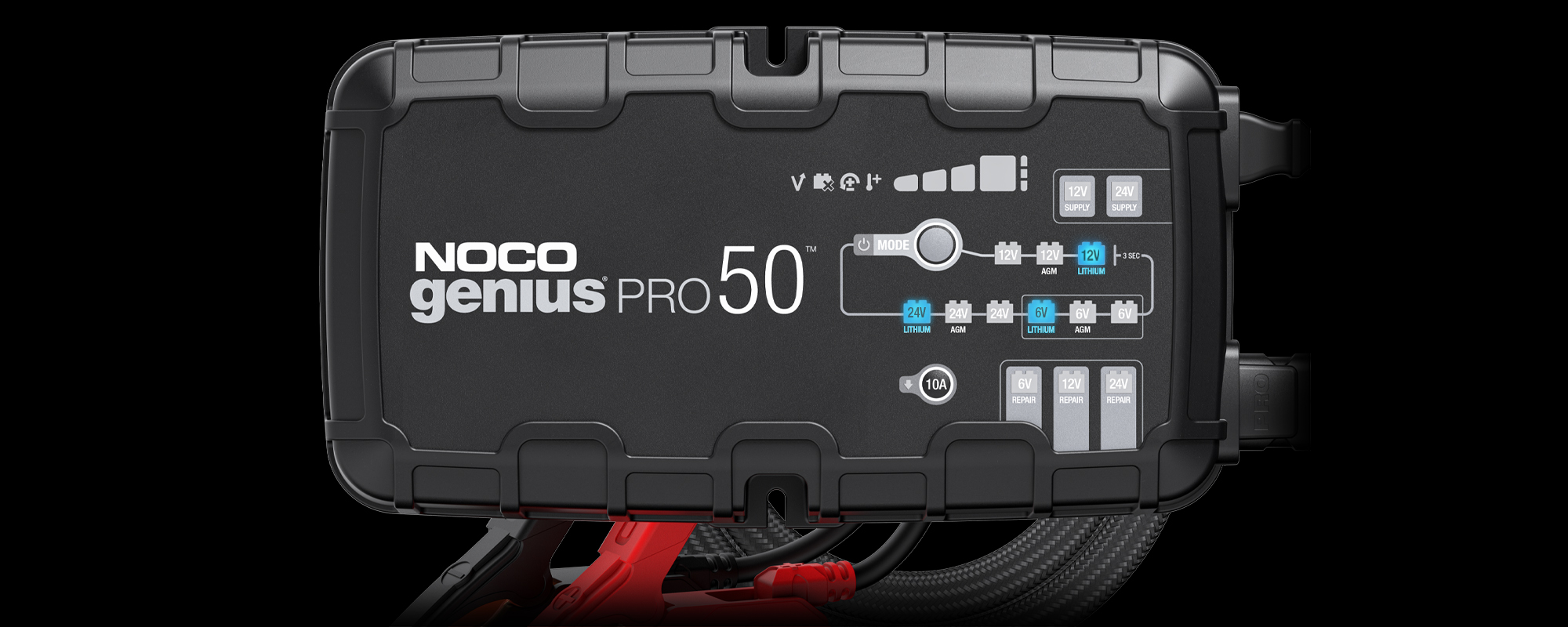
Force Mode
Used to charge batteries below 1V. All charge mode LED’s will flash and the selected mode will illuminate.
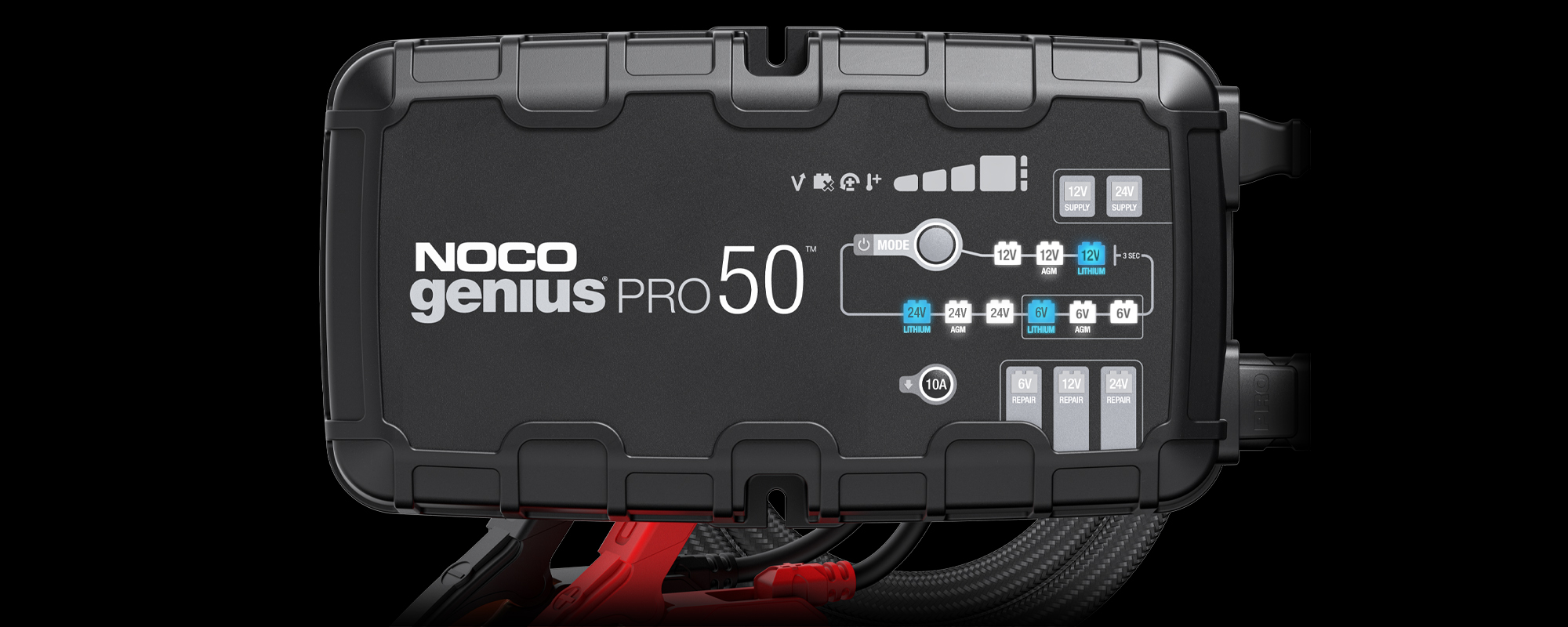
Supply
Converts to a DC power supply for powering 12V or 24V DC devices, or as a memory retainer when replacing a battery.
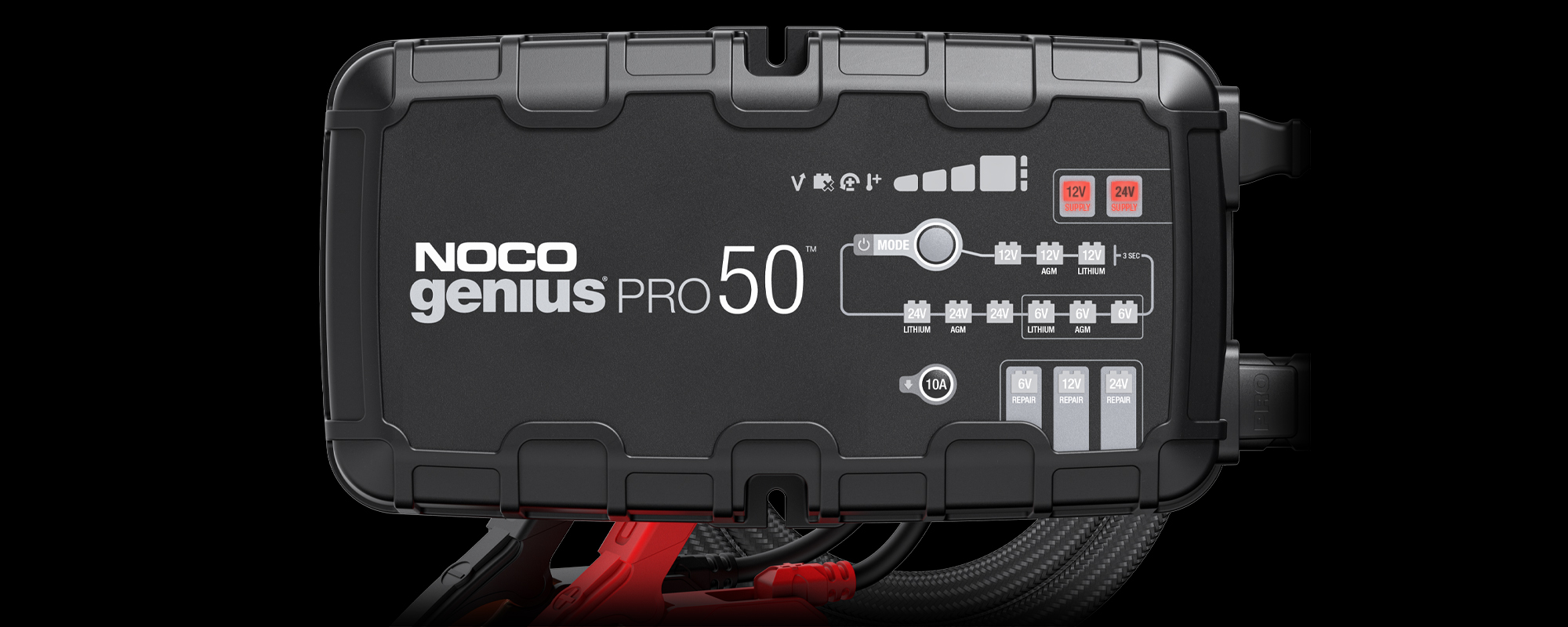
Repair
Used to repair old, idle, damaged, stratified, or sulfated batteries.
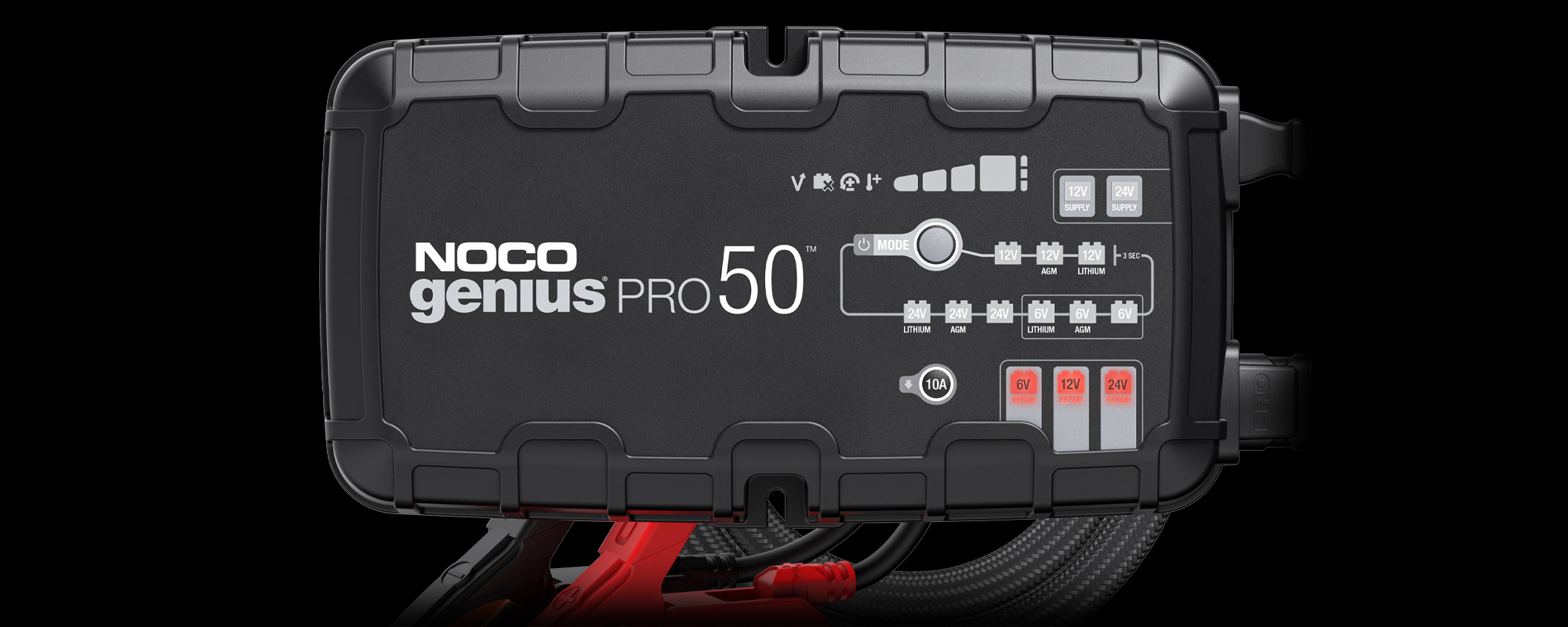
10A Charge
Allows the unit to operate at a lower charge current for smaller batteries or for maintenance.
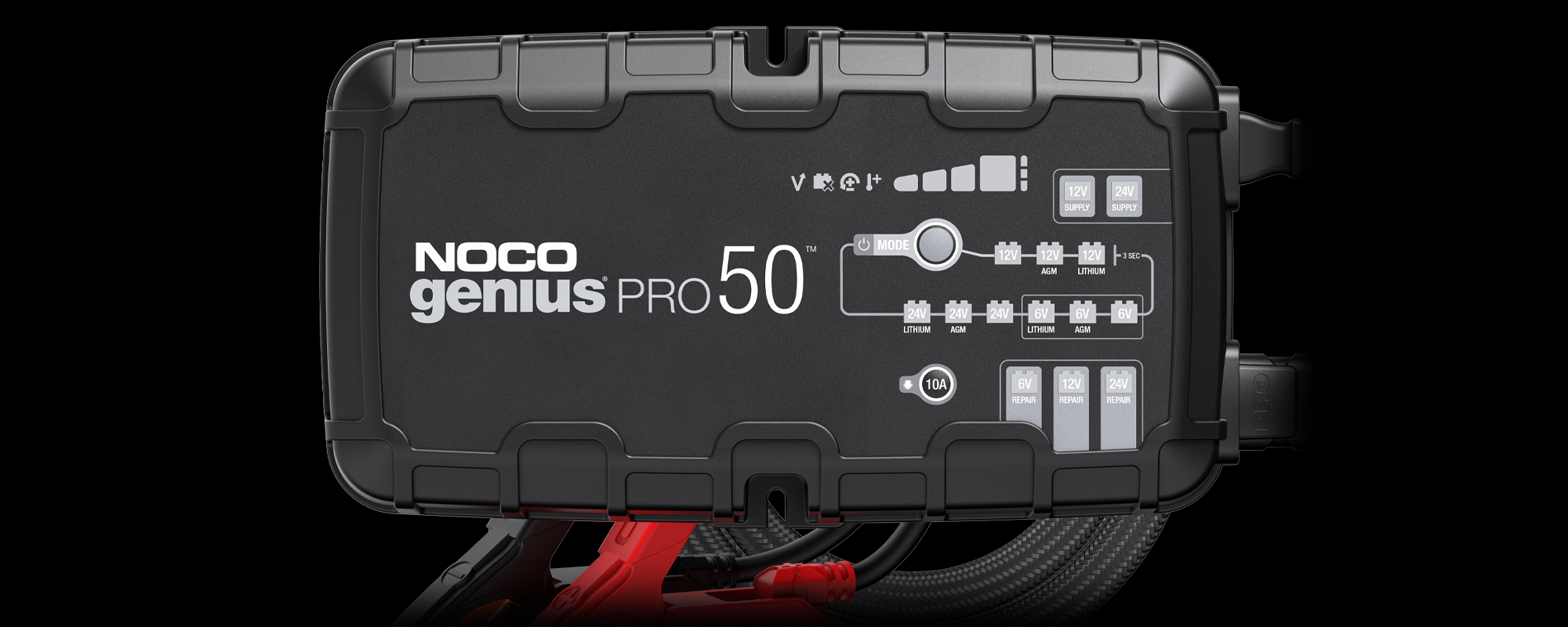
Charge Levels.
GENIUSPRO50
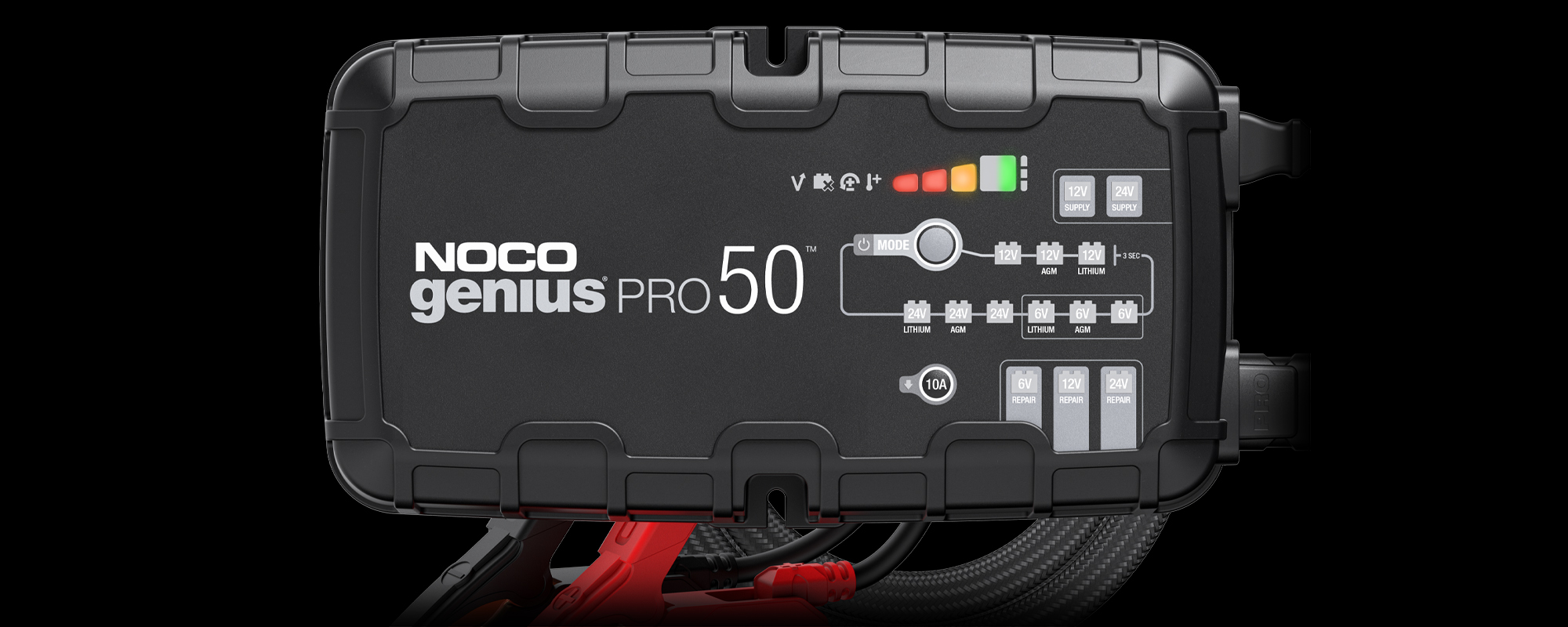
25% Charged
Pulsing Red 25% - The battery is less than 25% charged.
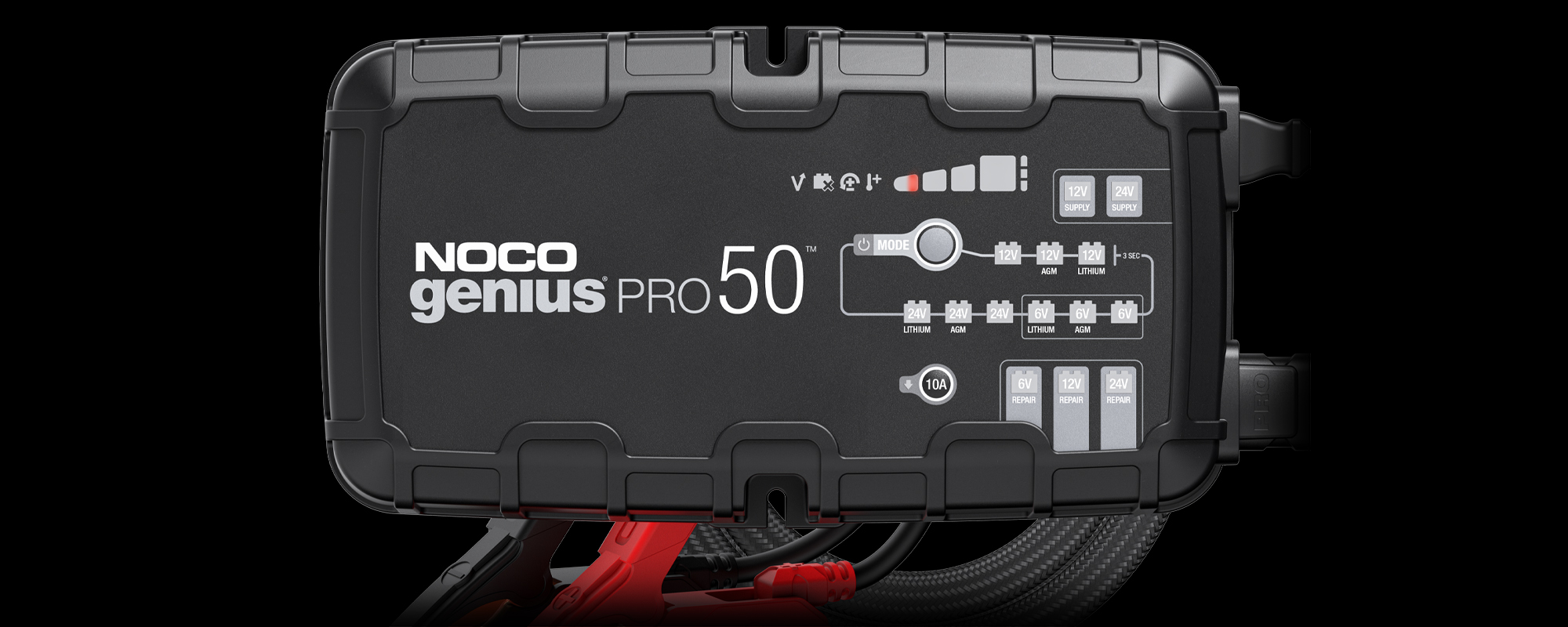
50% Charged
Pulsing Red 50% - The battery is less than 50% charged.
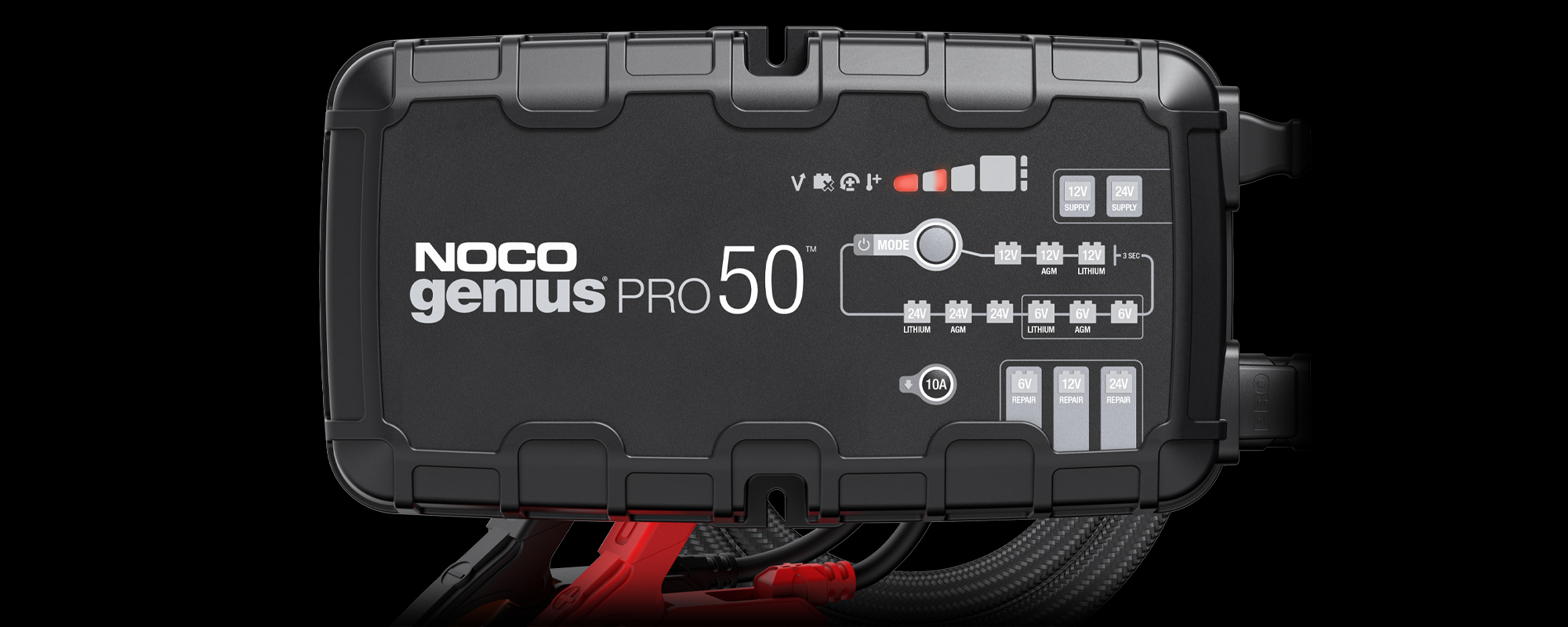
75% Charged
Pulsing Orange - The battery is less than 75% charged.
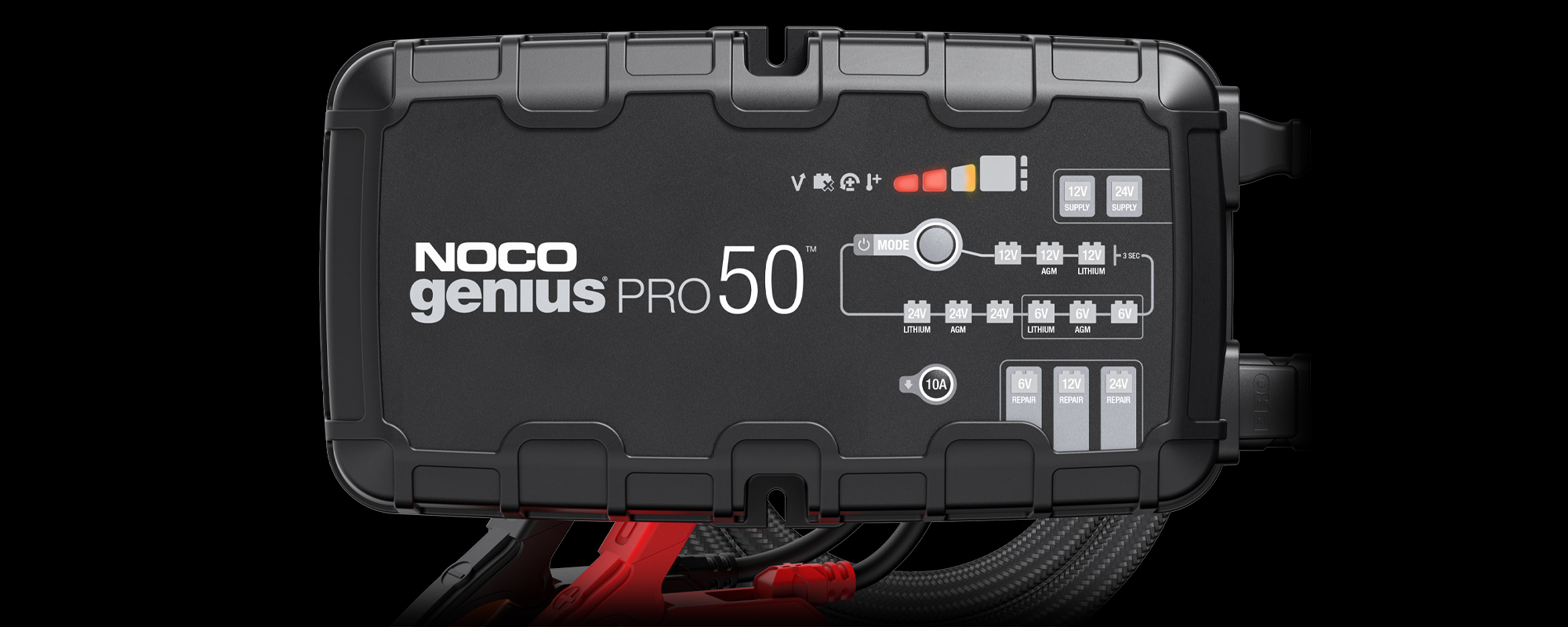
100% Charged
Pulsing Green - The 100% Charge LED will slowly pulse “on” and “off”, when the battery is less than 100% fully charged.
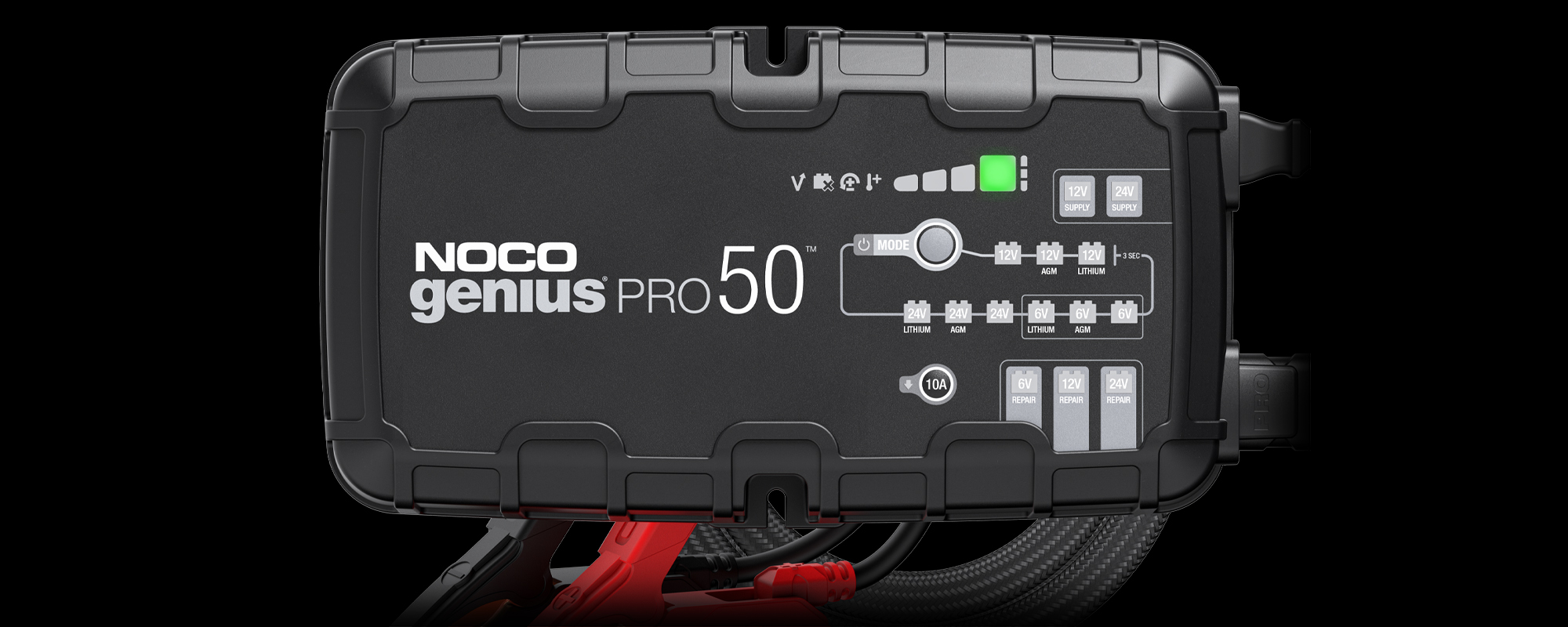
Complete
Solid Green - When the battery is fully charged, the Green LED will be solid, and the 25%, 50% and 75% Charge LEDs will turn “off”.
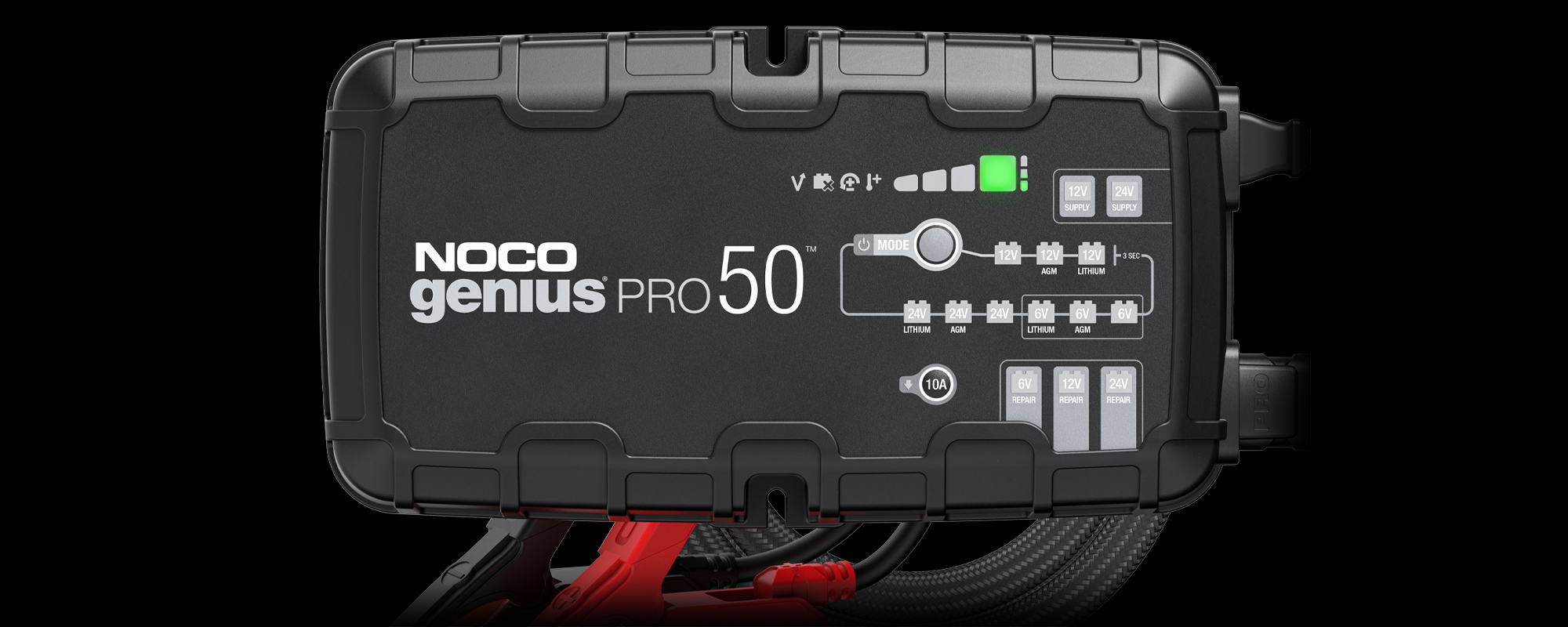
Optimization
Pulsing Bar - the Bar LED will chase slowly and turn off when the battery is fully optimized. The charger can be left connected indefinitely.
VIDEOS
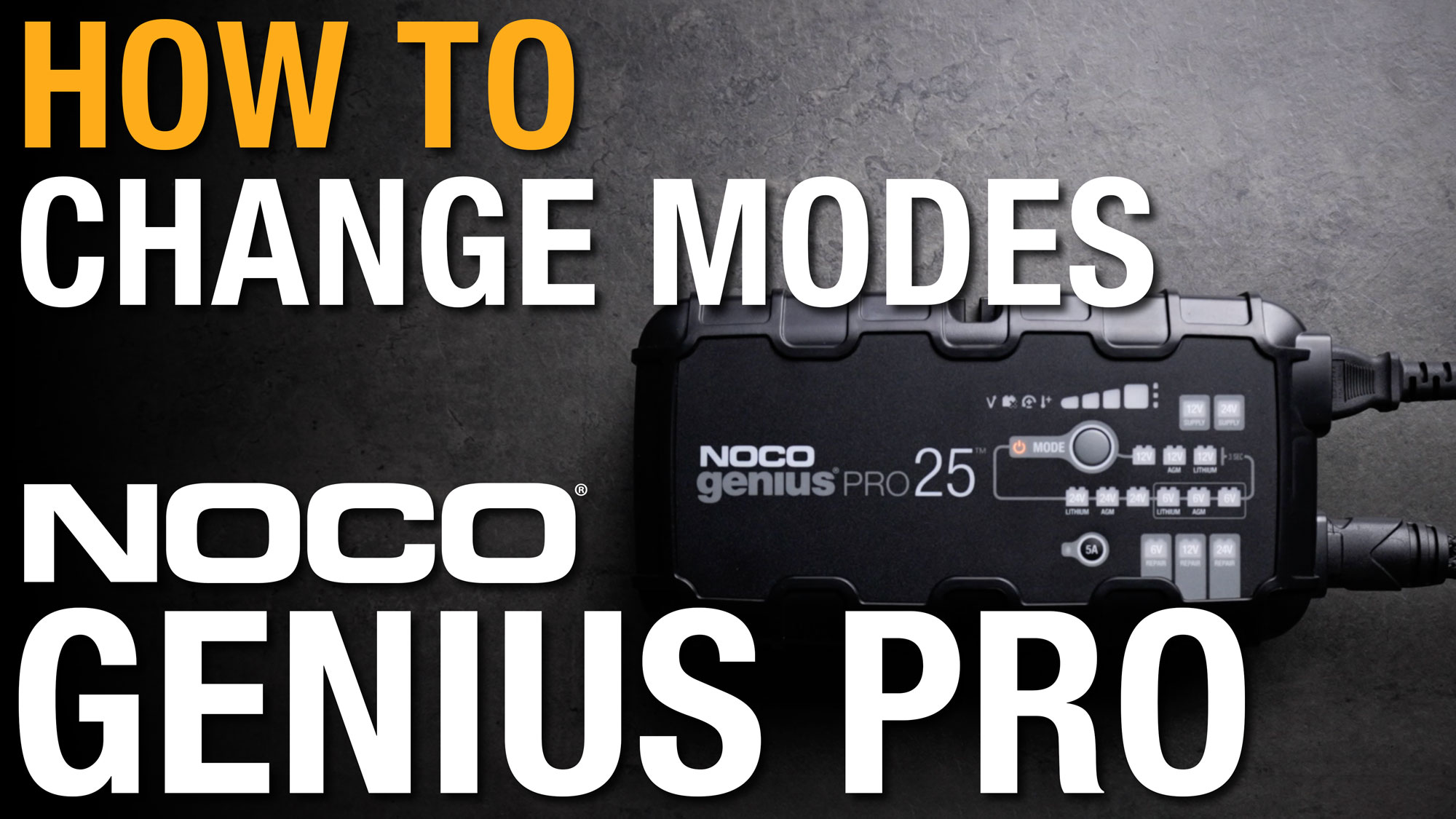
How to Change Modes on NOCO GENIUS PRO
How to Change Charging Modes on your NOCO® Genius PRO Smart Battery Charger.

How to Use Supply Mode on NOCO GENIUS PRO
How to use Supply Mode on your NOCO® Genius Pro Smart Battery Charger. CAUTION: When using Supply Mode all safety features will be disabled.

How to Use Force Mode on NOCO GENIUS PRO
How to Use Force Mode on your NOCO® Genius PRO Smart Battery Charger. CAUTION: When using Force Mode all safety features will be disabled.
FAQ
GENIUSPRO
Charging
What is the charging current of GeniusPro?
GENIUSPRO25 25A (6V, 12V), 12.5A (24V) DC
GENIUSPRO50 50A (6V, 12V), 25A (24V) DC
What is the power consumption of GeniusPro?
GENIUSPRO25 375 Watts (Max)
GENIUSPRO50 750 Watts (Max)
What battery voltages is GeniusPro compatible with?

NOCO GeniusPro chargers are compatible with 6V, 12V & 24V batteries, including all types of 12V lead-acid, AGM and lithium-ion batteries.

GeniusPRO isn't detecting the battery, how do I force charging to start?

NOCO GeniusPRO are able to detect and charge dead batteries as low as 1-volt. For extremely dead batteries lower than 1-volt, manually turn on Force Mode to detect and charge batteries all the way down to zero volts.

How to use Force Mode on GeniusPRO

Can I run a load on the battery while charging?

It is not recommended to run a load on the batteries while they are being charged.

Can Genius charge a Lead-Carbon battery?

Genius can be used to charge Lead-Carbon batteries by using 12V Mode.

Which GeniusPro charger is best for my battery?

Selecting the appropriate charger for your battery will depend on its Amp-Hour (Ah) capacity size. This is usually listed on the battery label at the 20-hour rate, example: “100 AH @ 20HR”. Check your battery for its rated Amp-hour capacity.

GENIUSPRO25 (6V and 12V) Up to 1000Ah, (24V) Up To 500Ah
GENIUSPRO50 (6V and 12V) Up to 2000Ah, (24V) Up To 1000Ah


What are the charging times for GeniusPro?

These are approximate charging times for a battery at 50% depth of discharge.

 
GENIUSPRO25

GENIUSPRO50
50 Amp Hour 1.5 hours 0.8 hours
100 Amp Hour 3 hours 1.5 hours
200 Amp Hour 6 hours 3 hours
500 Amp Hour 15 hours 7.5 hours
1000 Amp Hour 30 hours 15 hours
Charge Modes
How do I change modes on GeniusPro?

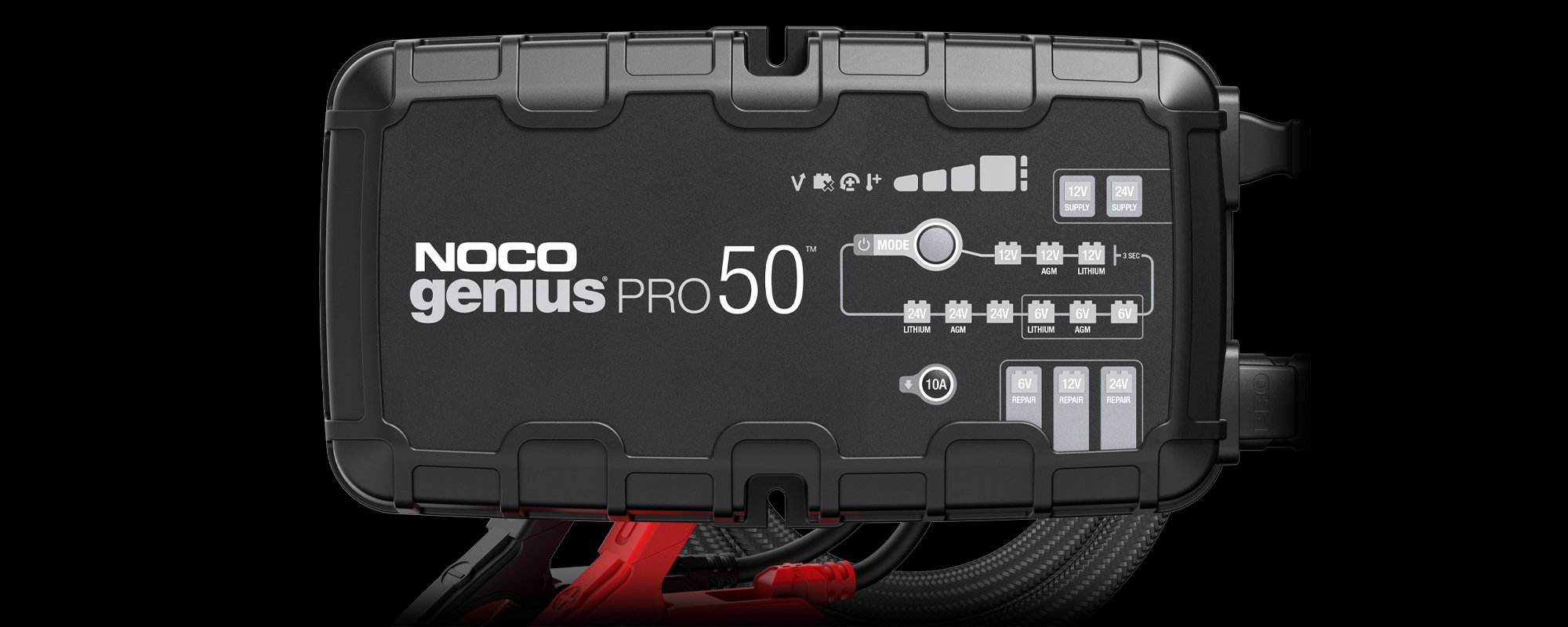
When plugged into AC power for the first time NOCO GeniusPro will start out in Standby Mode. Press the Mode Button to switch between modes. To access 6V or 24V charging modes, press and hold the Mode Button for 3 seconds then toggle the Mode Button to the desired battery type.

How to Change Modes on GeniusPRO Chargers

What is Repair Mode on GeniusPRO?

Repair is an advanced battery recovery mode for repairing and storing, old, idle, damaged, stratified or sulfated batteries. Not all batteries can be recovered. Batteries tend to become damaged if kept at a low charge and/or never given the opportunity to receive a full charge. The most common battery problems are battery sulfation and stratification. Both battery sulfation and stratification will artificially raise the open circuit voltage of the battery, causing the battery to appear fully charged, while providing low capacity. Use Repair in attempt to reverse these problems. For optimal results, take the battery through a full charge cycle, bringing the battery to full charge, before using this mode. Repair Mode can take up to four (4) hours to complete the recovery process and will return to Standby when completed. Repeated repair cycles may be needed depending on size and condition of the battery, however battery temperature must be closely monitored.

CAUTION: USE THIS MODE WITH CARE. THIS MODE IS FOR 6-VOLT, 12-VOLT AND 24-VOLT LEAD-ACID BATTERIES ONLY. THIS MODE USES A HIGH CHARGING VOLTAGE AND MAY CAUSE SOME WATER LOSS IN WET (FLOODED) CELL BATTERIES. BE ADVISED, SOME BATTERIES AND ELECTRONICS MAY BE SENSITIVE TO HIGH CHARGING VOLTAGES. TO MINIMIZE RISKS TO ELECTRONICS, DISCONNECT THE BATTERY BEFORE USING THIS MODE.

Using Repair Modes on GeniusPRO

How do I use Force Mode on GeniusPRO?

NOCO GeniusPRO is able to detect and charge dead batteries as low as 1-volt. For extremely dead batteries lower than 1-volt, manually turn on Force Mode to detect and charge batteries all the way down to zero volts. Follow the link below to learn how to use Force Mode on GeniusPRO.

How to use Force Mode on GeniusPRO

What is Supply Mode on GeniusPRO?

Supply Mode converts the charger to a constant voltage DC power supply. It can be used to power 12VDC and devices, tire inflators, seat heaters and more. As a power supply, it can also be used to retain a vehicle’s on-board computer settings during battery repair or replacement.

13.6V Supply (12V Supply) provides 13.6-volts up to 25A. Charger output voltage will drop if output load exceeds the 25A current limit.

27.2V Supply (24V Supply) provides 27.2-volts up to 12.5A. Charger output voltage will drop if output load exceeds the 12.5A current limit.

CAUTION: USE THIS MODE WITH EXTREME CARE. SUPPLY MODE DISABLES SAFETY FEATURES AND LIVE POWER IS PRESENT AT THE CONNECTORS. DO NOT TOUCH CONNECTIONS TOGETHER. RISK OF SPARKS, FIRE, EXPLOSION, PROPERTY DAMAGE, INJURY, AND DEATH.

Using Supply Modes on GeniusPRO

What is the 5A button on GENIUSPRO25?

Pressing the 5A Mode button activates Reduced Charge Current mode, which will allow the unit to operate at a charge current of 5A. This mode is available at any time and can be used with the following modes only: 12V AGM, 12V LITHIUM, 6V, 6V AGM, 6V LITHIUM, 24V, 24V AGM, 24V LITHIUM and Force mode.

What is the 10A button on GENIUSPRO50?

Pressing the 10A Mode button activates Reduced Charge Current mode, which will allow the unit to operate at a charge current of 10A. This mode is available at any time and can be used with the following modes only: 12V AGM, 12V LITHIUM, 6V, 6V AGM, 6V LITHIUM, 24V, 24V AGM, 24V LITHIUM and Force mode.

LEDs
The green LED is flashing, is charging done?

When GeniusPRO has a slowly pulsating green LED it means the charger is in Maintenance Mode. After the battery is fully charged, the charger will continue to provide ongoing maintenance and optimization until disconnected.


Click here to learn more about the Charge LEDs on GeniusPRO25.

Click here to learn more about the Charge LEDs on GeniusPRO50.

The green LED went straight to flashing instead of going solid, is that normal?

It is normal functionality for Genius to go sometimes go straight to Maintenance Mode after normal charging is complete.

View above to learn more about the Charge LEDs on Genius.

What does the Overvoltage Error LED mean?

If the Overvoltage LED is illuminated, this means the battery's voltage is too high for the charge mode that is selected. For example, if you have a 12V battery and have selected a 6V charging mode selected.

All the Error LEDs are flashing. What is wrong?

If the Overvoltage, Bad Battery, and Standby LEDs are flashing together, either the charger's internal temperature is too hot, or the ambient temperature is too cold for operation. If the charger's internal temperature is too hot, the charger will stop displaying the error and resume function after the charger cools down. If the ambient temperature is too cold, the charger will resume function when the ambient temperature rises.

What does it mean when GeniusPRO is flashing a charge LED and Standby Mode?

If a charge LED and Standby mode are flashing this means Genius is in Force Mode. After 5 minutes, the charger will return to the normal charge mode operating and low voltage detection will be reactivated.


When in Force Mode all safety features will be disabled.

How to use Force Mode on GeniusPRO

Specifications
How much does GeniusPro weigh?
GENIUSPRO25 2.7 lbs (1.22kg)
GENIUSPRO50 5 lbs (2.27kg)
What is the IP rating of GeniusPro?
GENIUSPRO25 IP20
GENIUSPRO50 IP20
What type of fuse does GeniusPro chargers use?
GENIUSPRO25 30 AMP ANL Fuse
GENIUSPRO50 60 AMP ANL Fuse
How long is the warranty on GeniusPro?

The warranty is 3 years from the proof of purchase or manufacture date (based on serial number).


Where can I find the serial number on GeniusPRO?

All NOCO GeniusPRO Chargers are marked with a unique serial identification number, usually found stamped on the side or edge of the unit. Click the link below to find the serial number location on each model.

Locating the Serial Number on GeniusPRO

Troubleshooting
Where can I obtain the user manual for GeniusPro?
GENIUSPRO25 User Guide
GENIUSPRO50 User Guide
My GeniusPRO charger is stuck in Standby Mode.

If the Standby LED is illuminated it means that GeniusPRO is in Standby Mode and it is not recognizing that it is connected to a battery. This can happen when there is no battery connected to the charger, if the voltage on the battery is lower than the recognition threshold (1V), if the connection to the battery is faulty, or if the inline fuse is faulty or loose in the fuse housing.

How to use Force Mode on GeniusPRO

Genius is getting hot, is that normal?

Depending on the battery condition and size, Genius can get up to 85°C or 185°F while it is charging the battery. This would be considered normal operating conditions.

What does the Bad Battery Error LED mean?

If the Bad Battery Error LED is illuminated, this means that the battery is not holding a charge, or there may be a short in the battery. We recommend taking the battery into a local battery shop for a thorough evaluation of its health and status.

Accessories
Do GeniusPRO chargers come with a protective carrying case?

Yes. All GeniusPRO units come packaged with a carrying case for that unit. At this time we do not sell replacement carrying case.

Does NOCO sell extension cables for the clamps on GeniusPRO?

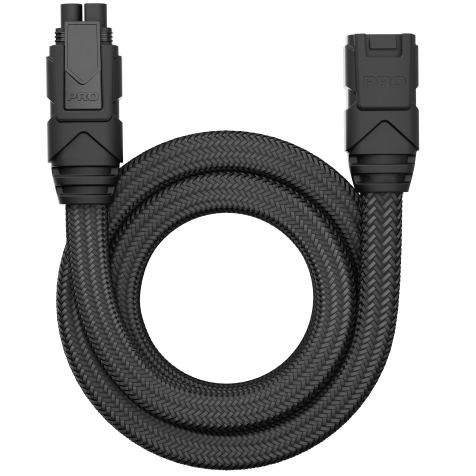
Yes, you can find 10 foot extension cables here.


HD 10' Extension Cable For GENIUSPRO25

PRO 10' Extension Cable For GENIUSPRO50

Does NOCO sell replacement clamps on GeniusPRO?

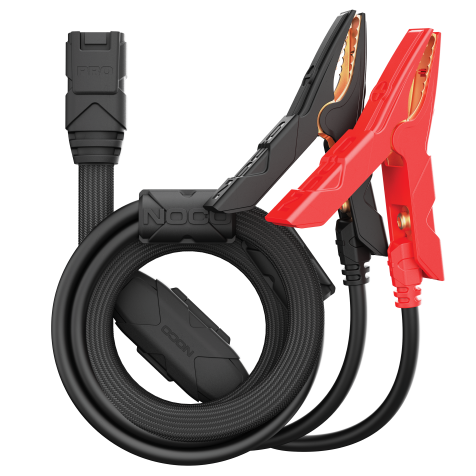
Yes, you can find replacement clamps with eyelets for GeniusPRO on our online store.


HD Battery Clamps With Eyelets For GENIUSPRO25

PRO Battery Clamps With Eyelets For GENIUSPRO50

GENIUSPRO50
ACCESSORIES.
Make the most of your NOCO GeniusPRO charger. Add more ways to charge with GeniusPRO accessories. Designed for high power efficiency and performance. The following accessories are compatible with GENIUSPRO50:

GPA003

GPA003

MSRP: $214.95 You save 20%

$169.95

Add to Cart

GPA004

GPA004

MSRP: $175.95 You save 20%

$139.95

Add to Cart